Skip to content
QevixLabs
Menu

Folders your team already talks in thinks in works in
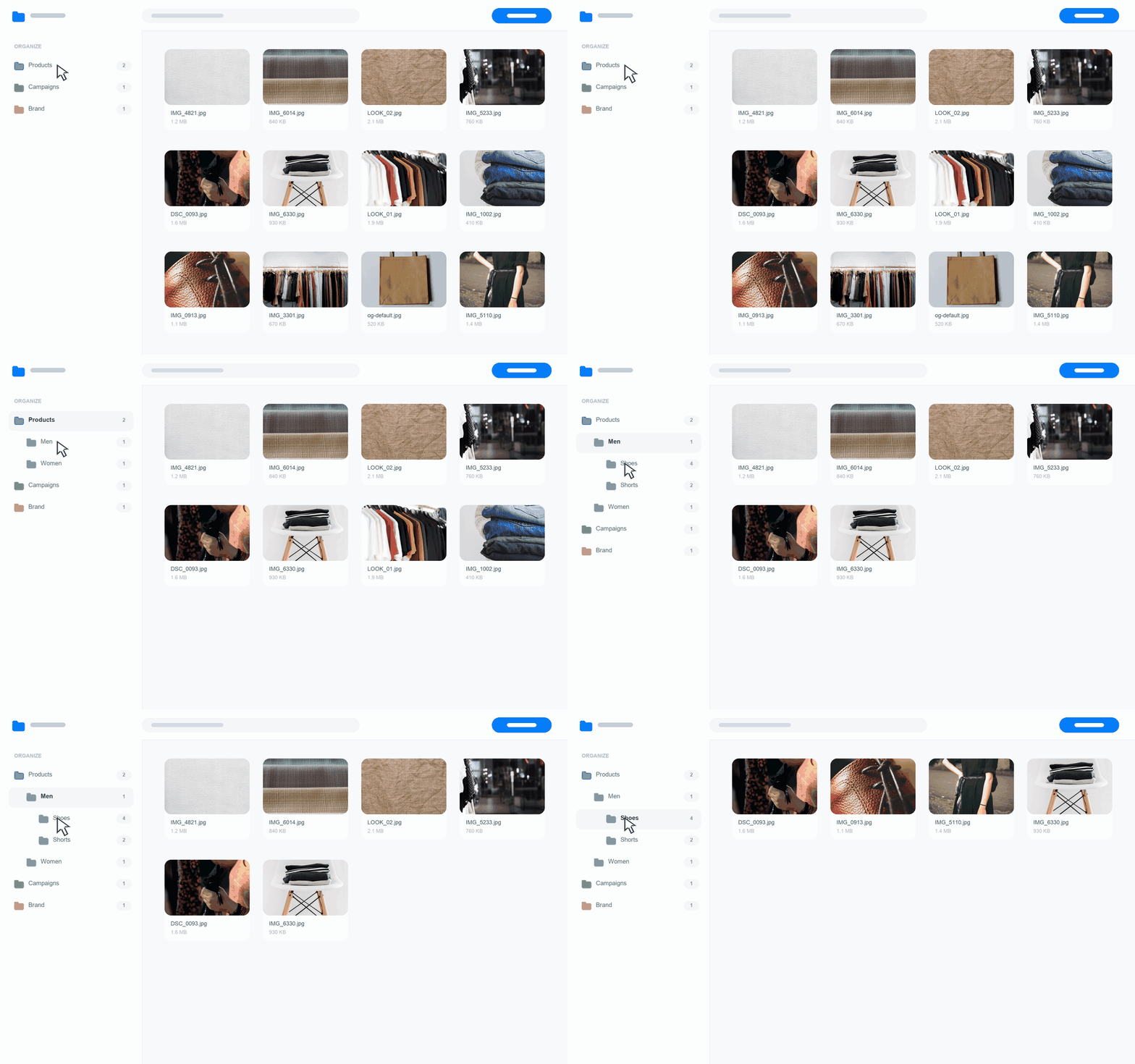
01-browse-the-tree
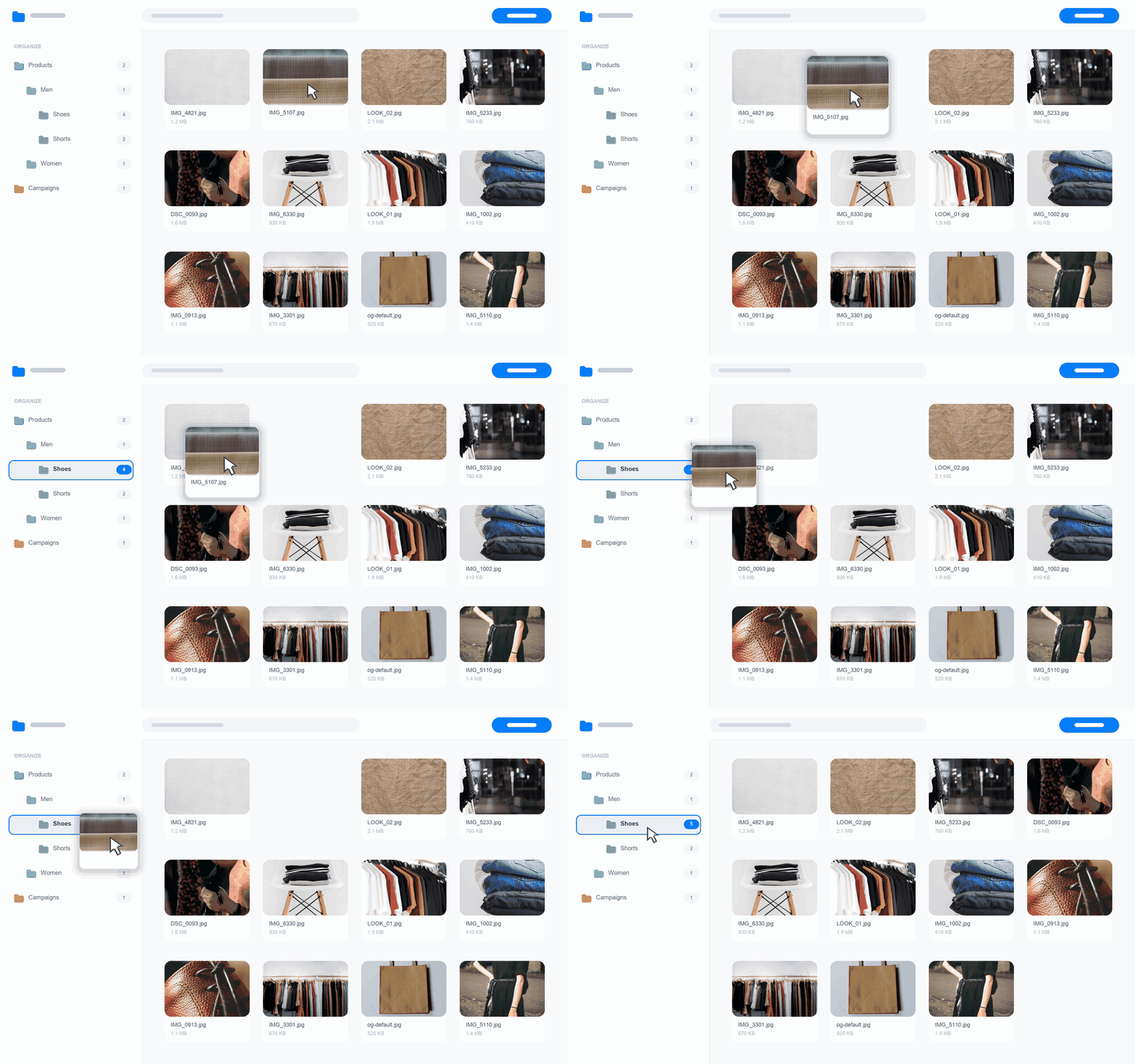
02-file-into-folder
filorium-08-column-view
03-upload-and-file
04-collections
05-duplicates
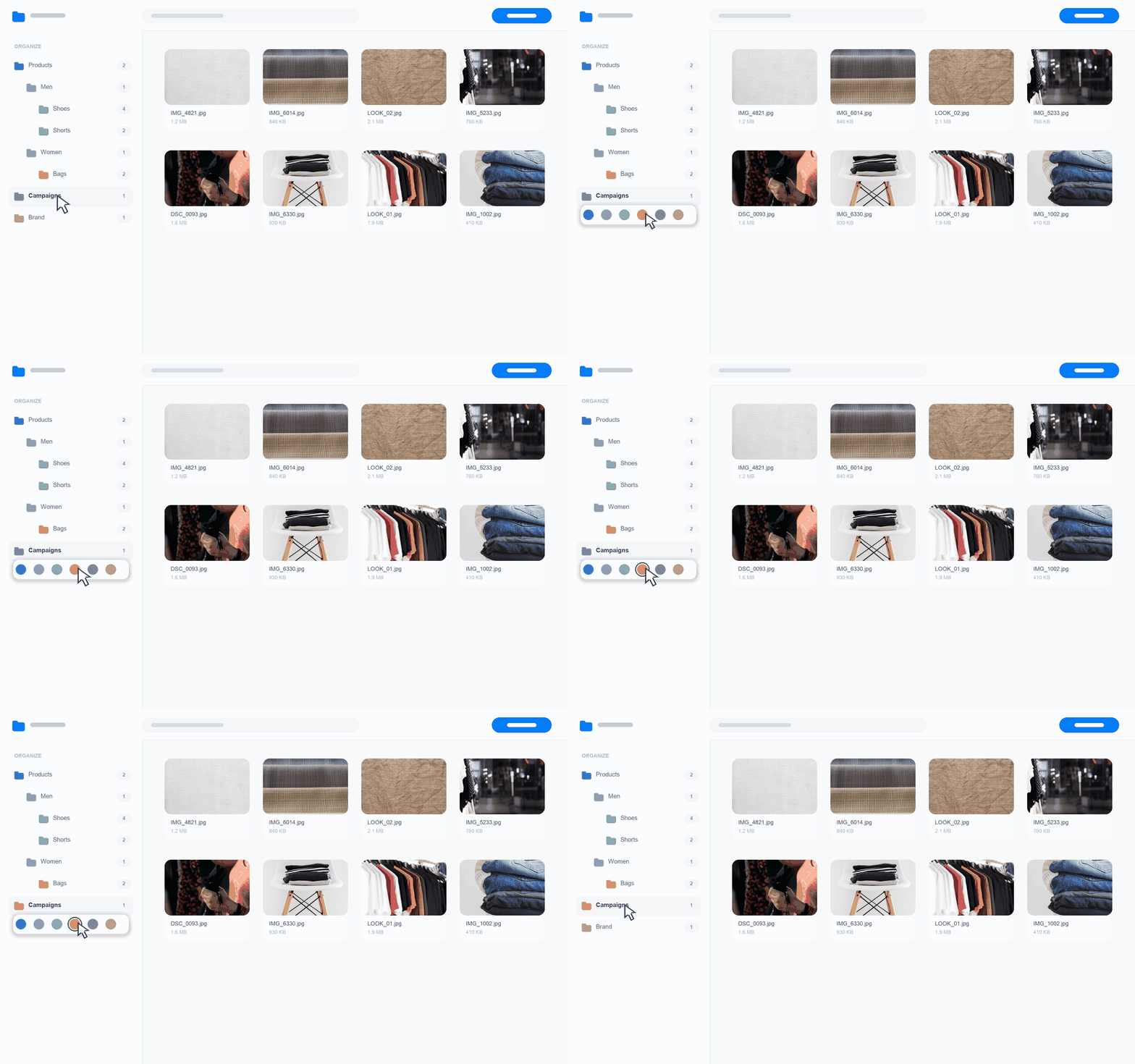
06-folder-colour
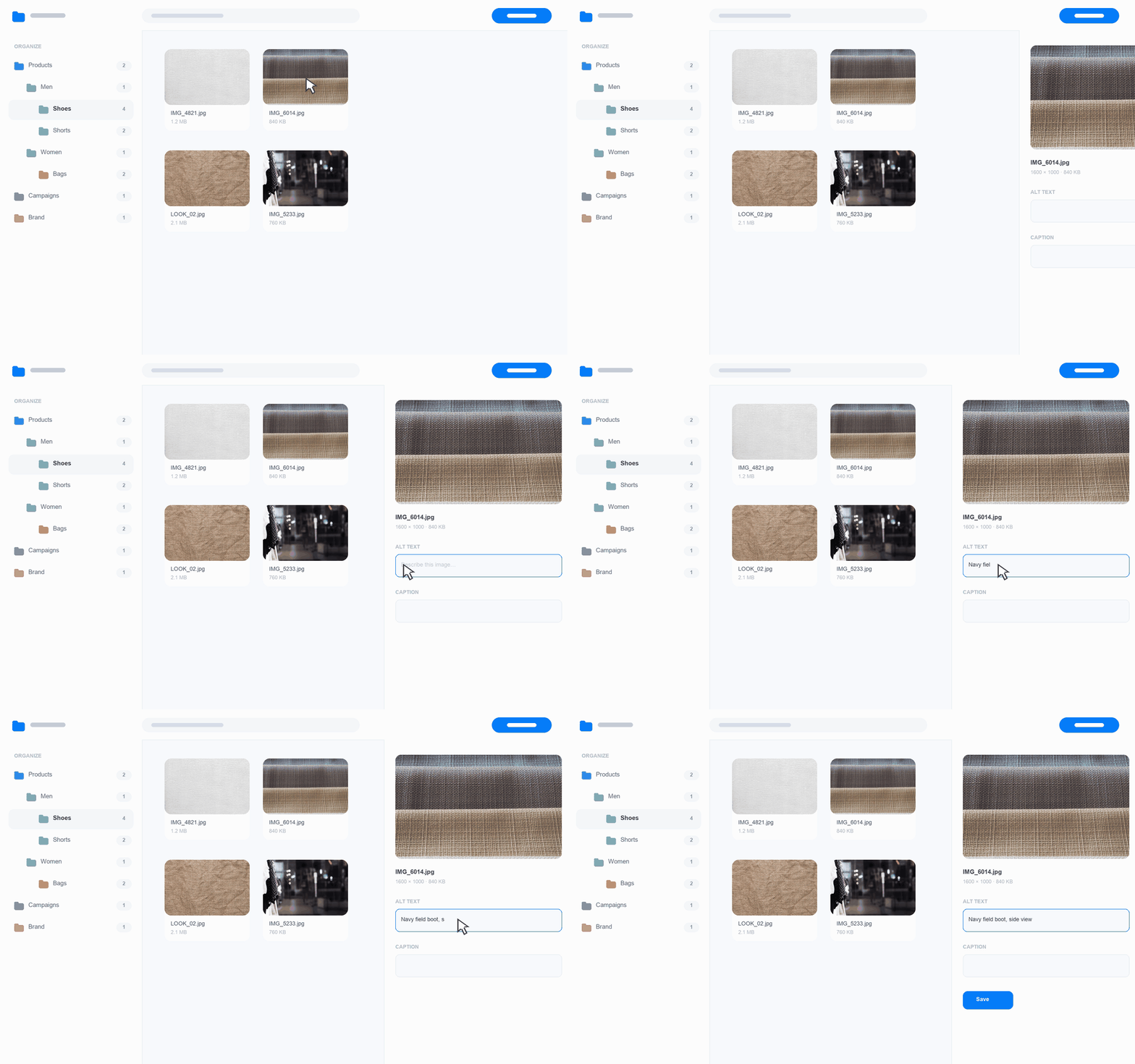
07-metadata

180

downloads all-time

5

active running Pro

100%

built & supported in-house

A library you can actually navigate

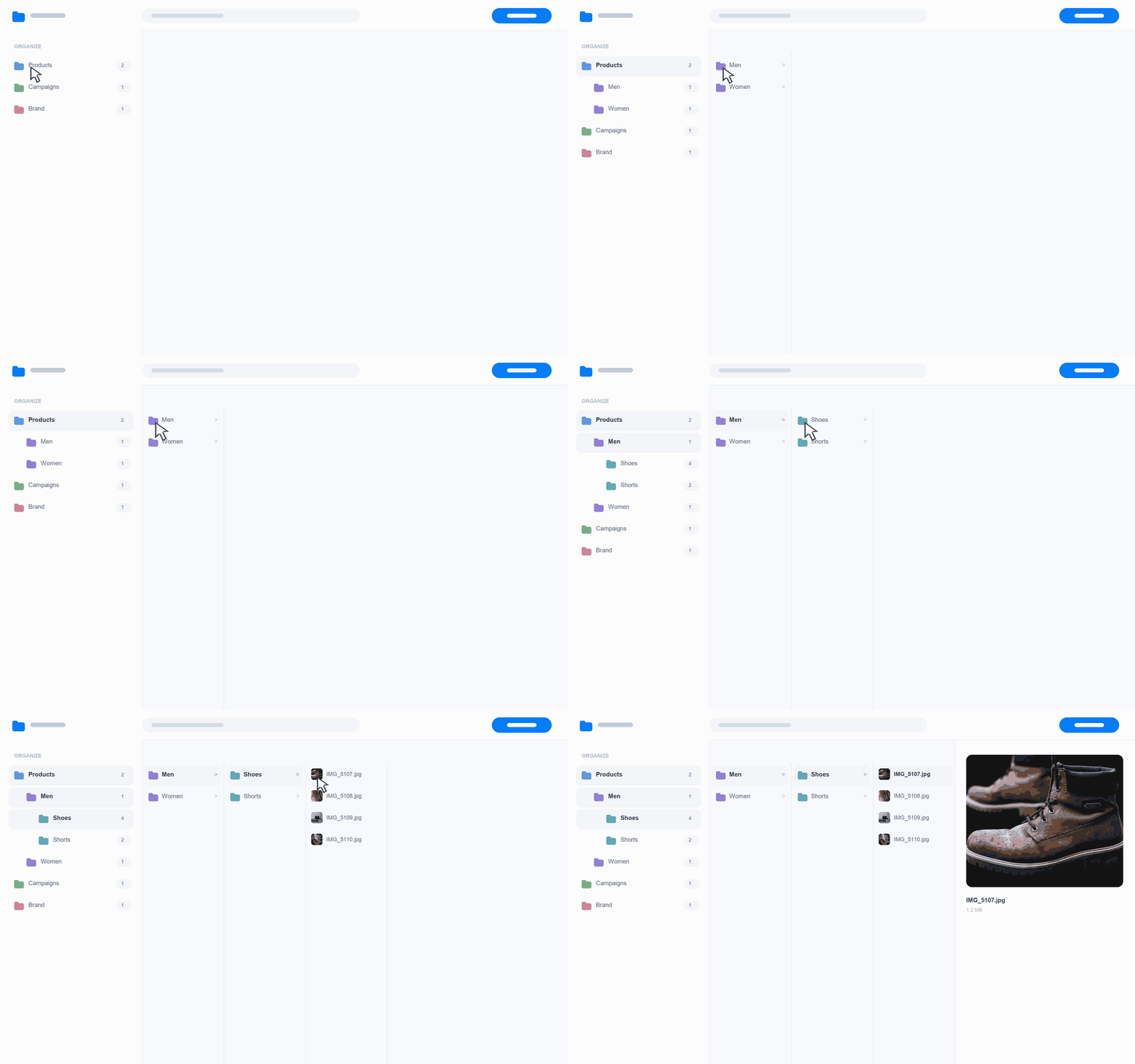
Stop scrolling through one long list of uploads. Create folders, put files where they belong, and move through your media just like you would on your computer.

Unlimited folders, unlimited nesting

Build the tree your team already talks in. Drag a folder into another and the whole branch comes with it.

5

Ways find duplicate files before they pile up

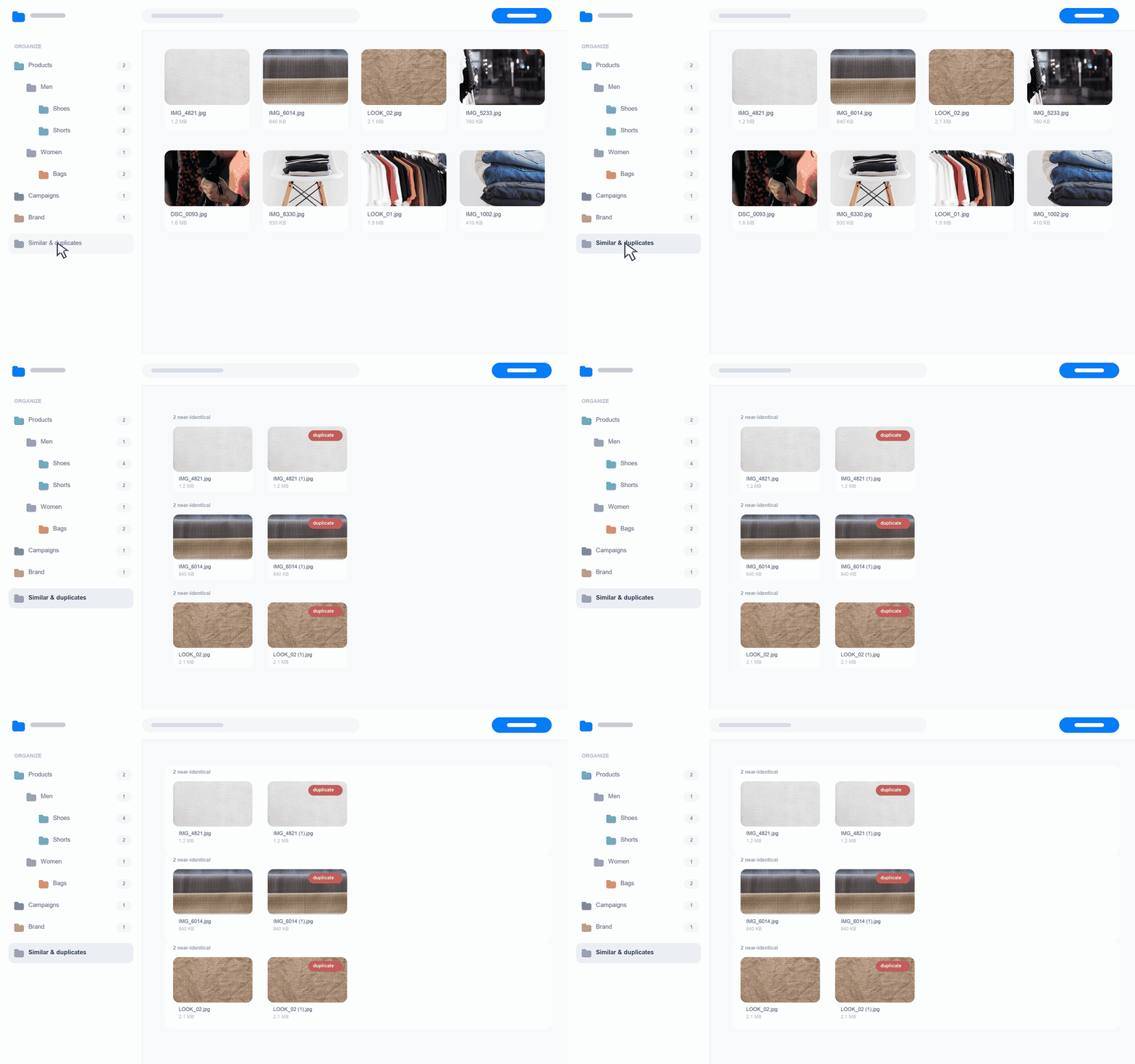
Discover checks your library in five ways to find files that may be duplicates — even in a large library.

  • Exact duplicates
  • Same file size
  • Same dimensions
  • Look-alike file names
  • Same metadata

Collections

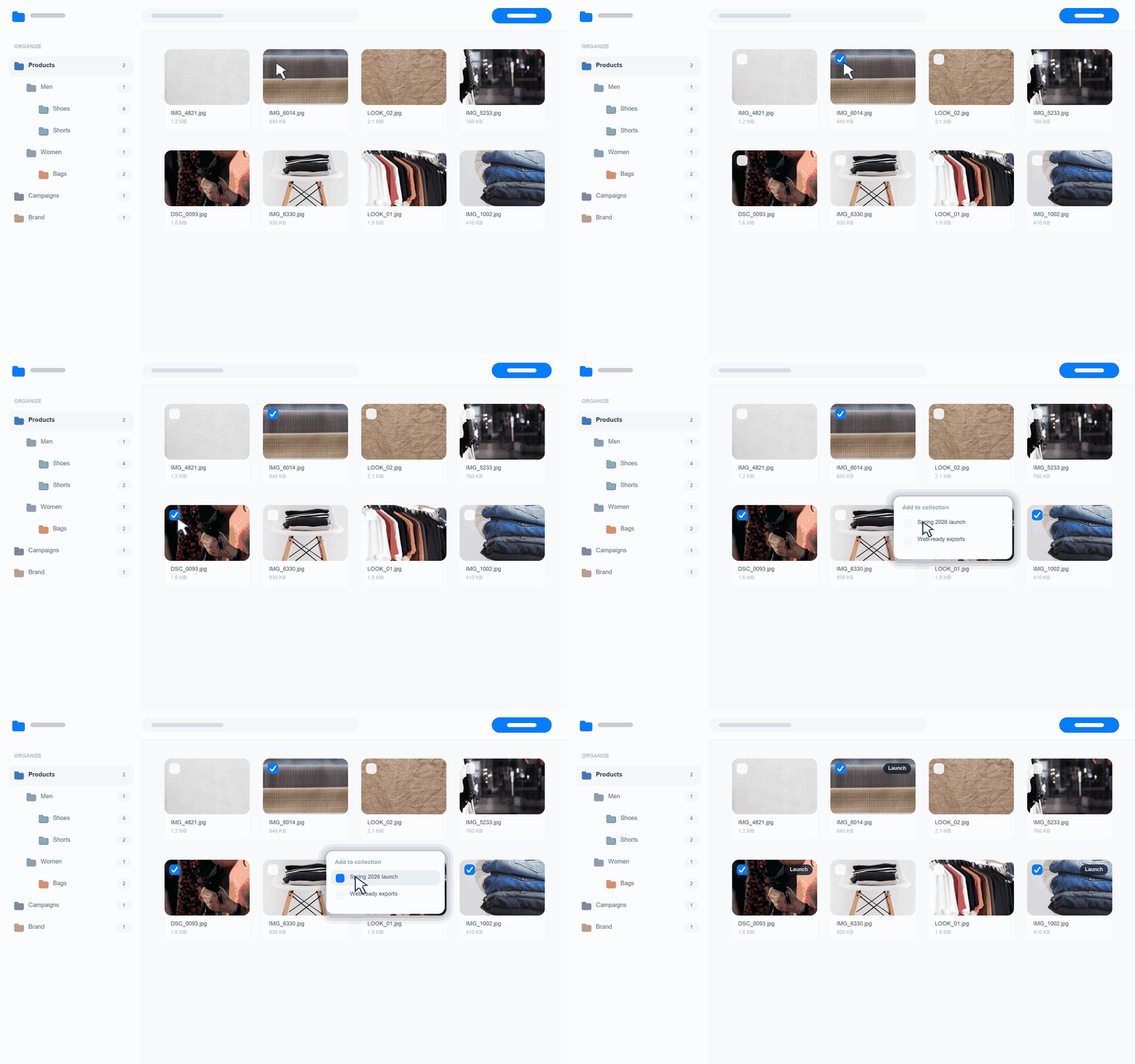
Colour-coded labels for organizing files across folders. Add one file to as many collections as you like.

0

Files moved on disk

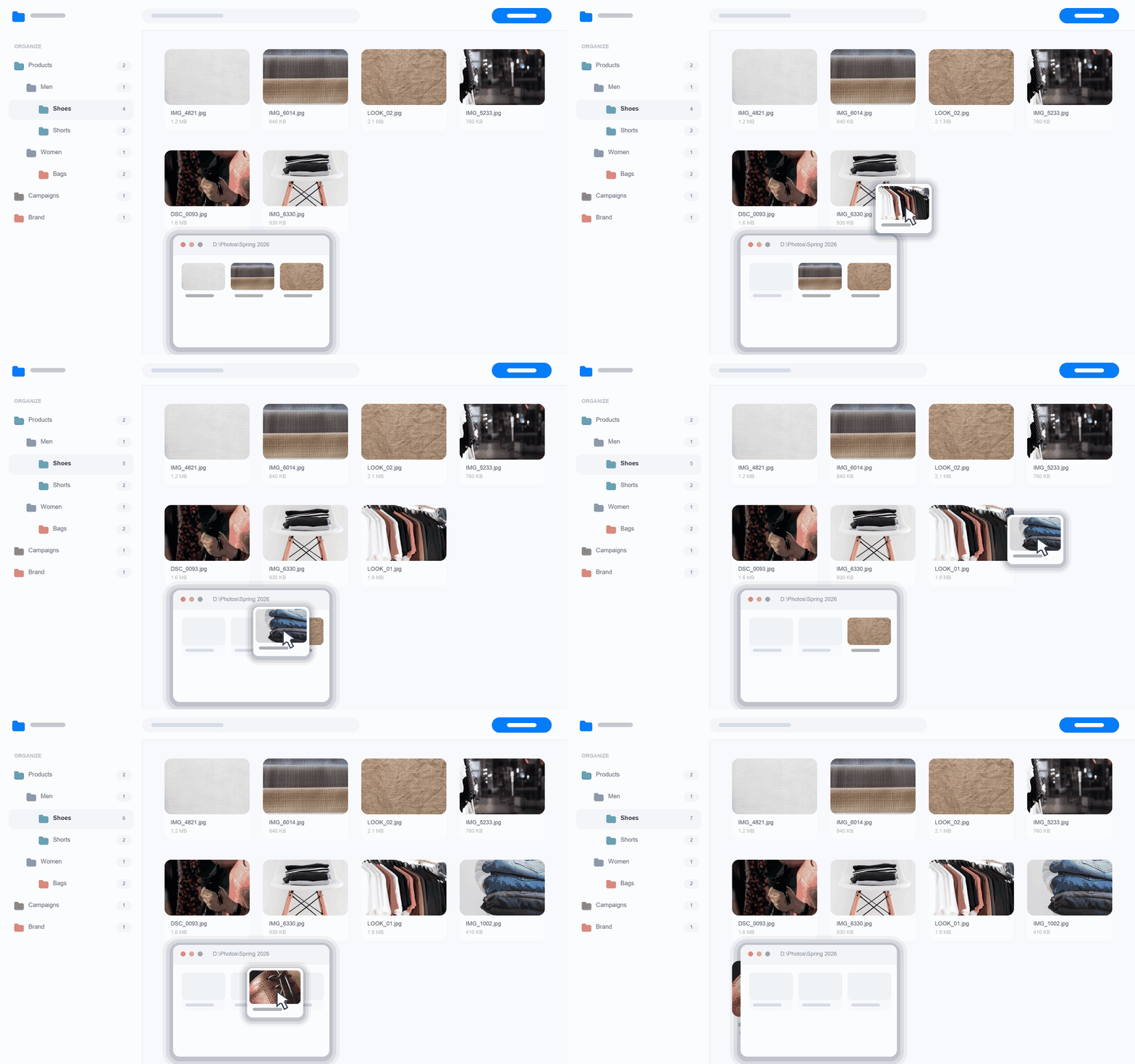
Filorium organizes your media without moving the actual files. Your uploads stay where WordPress put them, and your URLs keep working even if you deactivate Filorium.

20+

Importers

Bring in folders from other plugins without losing your existing structure. Export your Filorium folder structure whenever you need it.

Wherever you pick a file

Filorium works wherever WordPress lets you choose media — in the editor, Featured Image, Customizer, and popular page builders.

Your folders and files stay available in the same Filorium workspace, wherever you need them.

Elementor · Beaver Builder · SiteOrigin · Brizy · Visual Composer · Zion · Themify

Batch studio

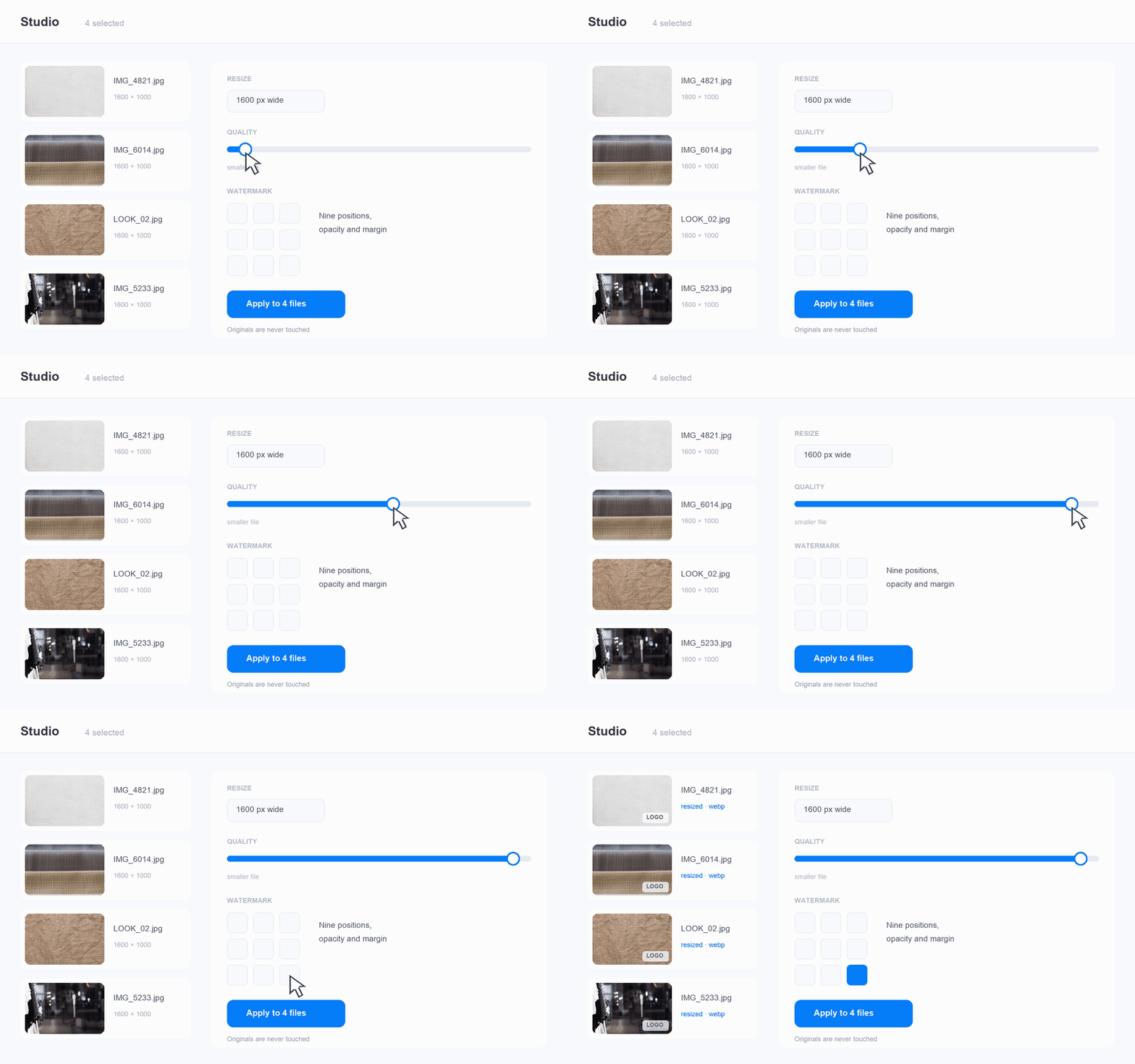
Crop, resize, compress, convert and watermark across a selection — originals kept untouched, always.
Nothing in use disappears quietly

Filorium keeps an index of where every file is actually referenced — post content and featured images — and updates it as content is saved. Deleting shows you the real counts first, and Empty Trash keeps anything still in use.

The Unused view turns the same index around: every file no page references, ready to clear out in one pass.

Zip in, zip out

Pack any folder or selection into a zip with its shape kept — or upload one archive and have its files and folders rebuilt on the server.

That second one is the way past a host that refuses your larger files: a file extracted from an archive never travels as a request body, so upload_max_filesize never sees it.

Change the file, keep its address

Rename a file and its generated sizes update with it. Replace the file without changing its URL — existing pages keep working.

Who can touch what

Set each user group to Manager, Uploader, Viewer or no access. It is applied as real WordPress capabilities, scoped to attachments — not a screen that merely hides buttons.

Two people, one library

Work in the same library at the same time. Each of you sees the other’s folders, filings and renames as they happen — no reload, and no quietly overwriting each other.

Organize, move, search, and manage media just like you would on your own site.

Give your media library a place

Filorium turns the WordPress Media Library into a workspace built around the way you organize files. Create your own structure, keep things where they belong, and find what you need without digging through one endless library.

Your files stay where they are, your existing URLs keep working, and your organization stays separate from the files themselves.

Filorium fits into the Media Library and WordPress’s own media picker, so your folders and files are available wherever you work with media.

Already using another folder plugin?

Bring your existing organization with you. Filorium can import folder structures from supported plugins without moving your files.

Get the free WordPress plugin on wordpress.org

The free version, from the official WordPress plugin directory - try it before you buy.

Three steps, and your afternoon back

Filorium is a real sequence, not a settings screen. Each step happens once.

  1. Step 01

    Install beside your library

    Activate the plugin. Nothing is migrated, nothing is rewritten, and every existing URL keeps resolving.

  2. Step 02

    Import what you already made

    Filorium finds the folder plugin you already run — one of more than twenty — and brings its tree over whole, memberships intact.

  3. Step 03

    Work the way you think

    Drag, colour, lasso, batch. The workspace follows you into every media frame on the site.

Pick your plan

Your license key is delivered instantly after checkout - activate it from the WordPress plugin on your own site.

Featured

Pro

FLR-PRO

$29 / year
7-day free trial
  • Use on 1 site
  • Every Pro feature, unlocked
  • A year of updates & support
Buy now

Max

FLR-MAX

$59 / year
  • Use on 5 sites
  • Every Pro feature, unlocked
  • Works out at $11.80 a site
  • Priority support
Buy now

Agency

FLR-AGENCY

$99 / year
  • Use on 50 sites
  • Every Pro feature, unlocked
  • Works out at $1.98 a site
  • Priority support
  • Built for freelancers & agencies
Buy now

Pro Lifetime

FLR-PRO-LIFETIME

$79 once
  • Use on 1 site
  • Every Pro feature, unlocked
  • Updates for life, paid once
Buy now

Max Lifetime

FLR-MAX-LIFETIME

$159 once
  • Use on 5 sites
  • Every Pro feature, unlocked
  • Updates for life, paid once
  • $31.80 a site, paid once
Buy now

Agency Lifetime

FLR-AGENCY-LIFETIME

$249 once
  • Use on 50 sites
  • Every Pro feature, unlocked
  • Updates for life, paid once
  • $4.98 a site, paid once
  • Priority support
Buy now

FAQ

Frequently asked questions

Quick answers about licensing, activation and billing.

How does licensing work?

Buy a package, receive a license key by email, and paste it into the product’s license field. It activates against our servers and re-checks automatically in the background - nothing to renew by hand on the site itself.

Where do I find my license key?

Your key is in the purchase email, and always in your account under the product it unlocks. Lost the email? No problem - sign in here, copy the key, and paste it into the product’s license field.

How do seats and activations work?

Each plan covers a fixed number of sites. Activating a product on a site uses one seat; deactivating it frees the seat for another site. Activating the same site again never uses a second seat.

Can I move a license to another site?

Yes - deactivate it on the old install, then activate on the new one with the same key. If the old site is gone and you can’t deactivate from inside it, open a ticket and we’ll free the seat for you.

Does a local copy of my site use a seat, or only the live one?

Any install you activate uses a seat - a licensed local copy counts the same as your live site. You don’t have to activate there: the free features still run unlicensed. Deactivate the local copy when you’re done and its seat frees up immediately.

Is this a subscription?

Our paid plans are subscriptions - each renews automatically at the interval you chose, shown plainly at checkout, and runs until you cancel. There’s no lock-in: cancel whenever you like and you keep full access until the period you’ve already paid for ends. Nothing is ever deleted.

How do I cancel auto-renewal?

In one click from Billing in your account - no email and no support request needed. Auto-renewal switches off right away, you’re never charged again, and your license keeps working to the end of the current period.

What happens when my license expires?

Nothing breaks and nothing is deleted. The paid features keep working for a short grace period after expiry, then quietly switch off - the free feature set carries on as normal. You can still download the versions released while your license was active, and renewing picks up exactly where you left off.

How do updates reach my site?

While your license is active, updates are delivered straight to your install and appear right where that product normally shows them - nothing to download by hand. A lapsed license still sees that a new version exists; renewing switches updating back on.

Where do I download what I bought?

From your account - every product you own has its downloads on its own page there. Your purchase email also carries a direct download link that works for 30 days without signing in.

Do you store my card details?

Never. Payments run through Stripe’s secure checkout, and card changes happen in Stripe’s own billing portal - your card number never touches our servers. Your receipts live in Billing too.

Can I get a refund?

Yes - within the window in our refund policy. If something isn’t working, tell us first: most “it’s broken” reports turn out to be a five-minute fix. A full refund switches the license off on its way out.

How do I get help?

Open a ticket from your account and the whole conversation stays in one place, tied to your products. Some products can also send one straight from their own settings screen, with a diagnostic snapshot attached. Support is never gated on a valid license - lapsed customers are exactly who we want to hear from.

What does an activated product send back to you?

As little as possible: the license key and a one-way fingerprint of the site’s address, so seats can be counted - never your content. The only detailed data that ever leaves is a diagnostic report you choose to attach to a support ticket.

Still stuck?

If your question isn’t answered here, reach out - a real person will get back to you.

Contact us